VideoShrink
Compress your videos for YouTube, TikTok, Instagram and more

VideoShrink helps you reduce the size of your videos without getting lost in technical settings.
Designed for content creators, freelancers, small businesses and anyone who regularly publishes or shares videos, VideoShrink makes it easy to create lighter files that are easier to send, upload, store or archive.
Whether your video comes from iMovie, Final Cut Pro, DaVinci Resolve, CapCut, VN or another video editing app, VideoShrink works as a simple final step: import your video, choose a destination, and let the app handle the compression.
A video compression app designed for creators
Video editing tools have become more accessible than ever. Today, it is easy to create a video for YouTube, Instagram, TikTok, a website, an online course, a business presentation or a simple message.
But once the editing is done, the same problem often appears:
the exported file is huge.
A video of just a few minutes can easily take up several hundred megabytes, or even several gigabytes. As a result, it becomes difficult to send, slow to transfer, annoying to store and sometimes unnecessarily large for its intended use.
VideoShrink was created to solve this very practical problem.
Its goal is not to replace a video editor or a professional encoding tool. Its role is simpler:
to reduce the size of your videos with clear, understandable settings designed for everyday use.
Why compress a video?
Compressing a video means reducing the file size while keeping enough visual quality for its intended purpose.
This is useful in many situations:
- sending a video by email or message;
- uploading a video more easily to the web;
- preparing a video for social media;
- reducing the space used on your drive;
- archiving videos without keeping unnecessarily large files;
- sharing a video with a client, colleague, friend or family member;
- creating a lighter version after exporting from a video editing app.
In many cases, there is no need to keep a video at full export quality, especially if it is meant to be watched on a phone, sent quickly or published online.
VideoShrink helps you find the right balance between visual quality and file size.
A simple interface, without technical jargon
Many video compression tools are powerful, but they often assume that you understand terms such as:
- codec;
- bitrate;
- container;
- encoding profile;
- target resolution;
- audio bitrate;
- frame rate;
- H.264;
- HEVC;
- MP4;
- MOV.
These settings are useful for advanced users, but they can be discouraging when you simply want to make a video file smaller.
VideoShrink takes a different approach.
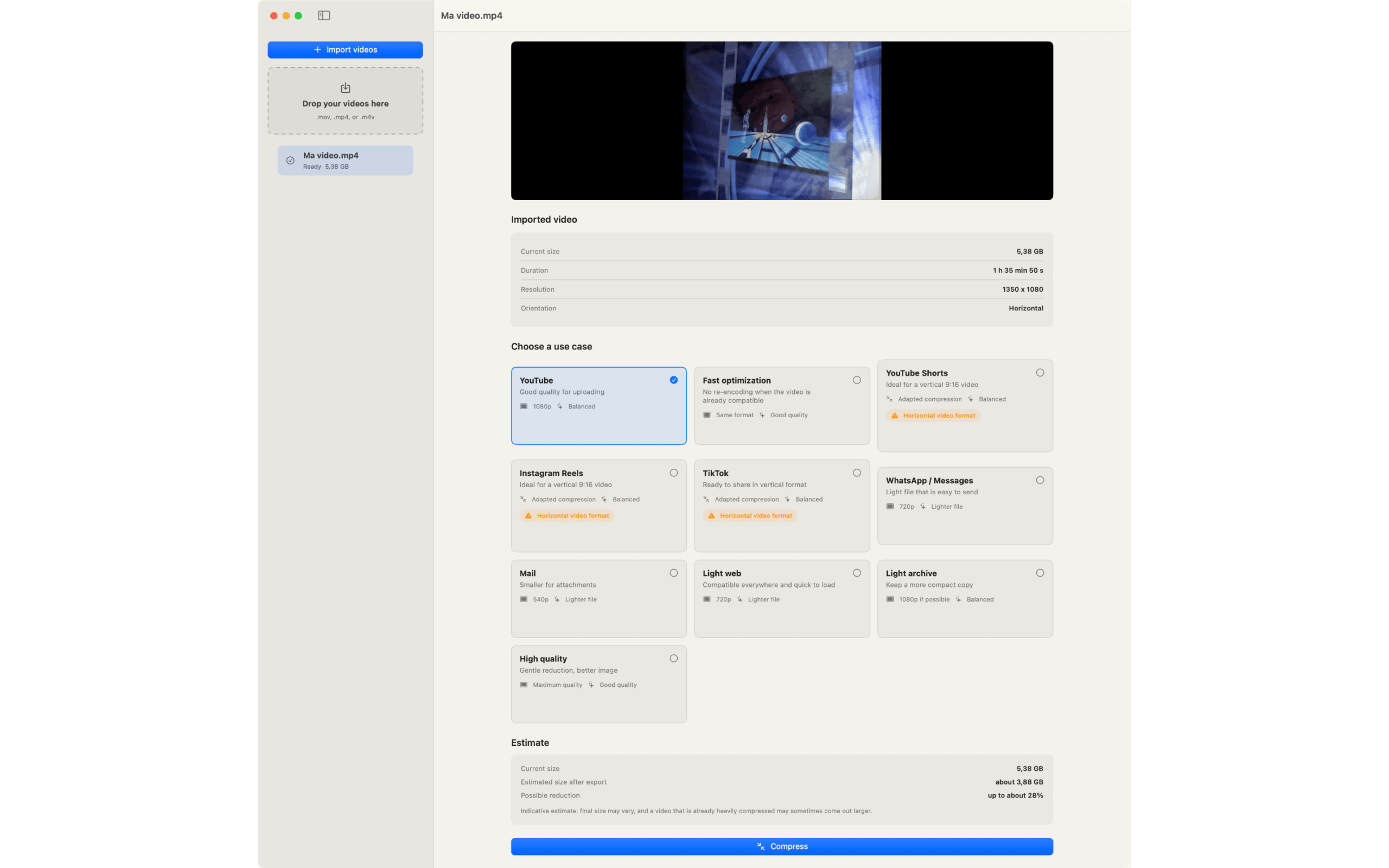
Instead of asking you to manually adjust complex technical parameters, the app offers simple choices based on the final use of your video:
- YouTube;
- YouTube Shorts;
- Instagram Reels;
- TikTok;
- WhatsApp / Messages;
- Mail;
- Lightweight Web;
- Lightweight Archive;
- High Quality.
The idea is simple: you choose what you want to do with the video, not how to encode it technically.
Reduce the size of videos exported from iMovie, Final Cut, DaVinci, CapCut or VN
VideoShrink is especially useful after exporting a video from an editing app.
When you export a video from iMovie, Final Cut Pro, DaVinci Resolve, CapCut or VN, you often get a high-quality file — but also a very large one.
That makes sense: video editing software usually prioritizes quality, sometimes at the expense of file size.
VideoShrink then helps you create a lighter version, better suited to a specific use.
For example:
- a smaller version to send to a client;
- a lighter file for messaging;
- a more reasonable version for web publishing;
- a smaller archive copy;
- a social-media-ready version when the video already has the right format.
Honest about what it does
VideoShrink is designed to stay clear and honest.
The app does not claim to automatically transform any video into perfectly optimized content for every platform.
For example, if you import a horizontal video and choose a TikTok, Instagram Reels or YouTube Shorts preset, VideoShrink can reduce its file size, but it does not pretend to automatically turn it into a true vertical 9:16 video unless such a feature is explicitly available.
This transparency matters.
A compressed horizontal video remains horizontal.
A compressed vertical video remains vertical.
Compression reduces file size, but it does not always replace proper cropping, framing or format adaptation.
VideoShrink focuses on clarity: you know what the app does, and you know what it does not do.
Estimated final size and real compression results
Before starting the compression, VideoShrink displays useful information about your video:
- current file size;
- duration;
- resolution;
- orientation;
- selected destination;
- estimated final size.
This estimate helps you understand what kind of result you can expect.
After the export, VideoShrink shows the actual result:
- original file size;
- compressed file size;
- percentage reduction;
- generated file.
You immediately see whether the compression was effective.
Example:
Before: 1.4 GB
After: 180 MB
Reduction: 87%
The goal is not to promise an exact final size in advance, but to give you a clear idea of the possible gain, then show you the real result once the file has been created.
Why choose VideoShrink instead of another tool?
There are already many video conversion and compression tools. Some are very powerful, but they are often designed for technical users.
VideoShrink makes a different choice: it focuses on simplicity, clarity and everyday use.
1. An app designed for Mac users
VideoShrink is a native Mac app, designed to feel natural on macOS.
It does not try to imitate a complicated cross-platform interface.
It focuses on a clean, fluid and direct experience.
On Mac, you can easily import your videos, analyze them, choose a preset and recover the exported file.
2. No need to understand codecs
You do not need to know whether your video should be encoded in H.264 or HEVC.
You do not need to choose a precise bitrate.
VideoShrink deliberately hides technical complexity behind understandable choices.
You choose a destination.
The app applies suitable settings whenever possible.
3. A final step after editing
VideoShrink is not a video editing app.
It is not designed to cut video clips, add effects, synchronize audio or create transitions.
It solves one specific problem:
your video is finished, but the file is too large.
This simple positioning makes the app easy to understand and quick to use.
4. Local compression
VideoShrink works locally on your Mac.
You do not need to upload your videos to an external server to reduce their size.
This is especially useful for personal, professional or confidential videos.
5. More accessible than professional encoding tools
Advanced encoders can be extremely powerful, but their interfaces can be intimidating.
VideoShrink is made for people who want a clean result without spending time studying video compression settings.
Who is VideoShrink for?
VideoShrink can be useful in many situations.
Beginner content creators
You create videos for YouTube, TikTok, Instagram or other platforms, but your exported files are too large?
VideoShrink helps you produce files that are easier to handle, upload and share.
Freelancers and entrepreneurs
You create presentation videos, tutorials, demonstrations or content for your clients?
VideoShrink makes it easier to send files or publish them on your website.
Trainers and teachers
Educational videos can quickly take up a lot of storage space.
VideoShrink helps create lighter versions for sharing or archiving.
Craftsmen, retailers and small businesses
You film your products, projects, work sites or services?
VideoShrink helps you create files that are easier to send, publish or keep.
Mac users who simply want to save space
Even if you do not publish content online, reducing the size of personal or professional videos can be useful to save disk space.
Main features of VideoShrink
Import common video formats
VideoShrink accepts common video formats supported by the system, including files created with an iPhone, iPad, camera or video editing app.
The app focuses on modern and widely used formats such as MP4, MOV and M4V when they can be processed correctly by the system.
Simple presets
The presets are designed for real-life uses:
- messaging;
- email;
- web publishing;
- social media;
- lightweight archiving;
- high quality.
Each preset is written in a way that is easy to understand.
MP4 export whenever possible
VideoShrink generates easy-to-use files, including MP4 when the format is compatible with the export.
MP4 is a widely used format, convenient for sharing, publishing and playback on many devices.
Clear information before and after export
Before compression, VideoShrink displays the key characteristics of your video.
After compression, you can see exactly how much space you saved.
Native and modern interface
VideoShrink is designed to be pleasant to use, with a clear and direct interface.
The goal is to reduce friction:
import, choose, compress, recover the file.
What VideoShrink is not
To avoid any ambiguity, VideoShrink is not:
- a full video editing app;
- a professional color grading tool;
- a complete replacement for an advanced encoder;
- an automatic publishing service for social media;
- a magic tool that guarantees an exact final file size;
- a solution designed for complex professional video workflows.
VideoShrink is intentionally simpler.
It is a practical, fast and accessible tool for reducing the size of everyday videos.
An ideal app after exporting your edit
The typical workflow is simple:
- Edit your video in your favorite app.
- Export a high-quality version.
- Notice that the file is too large.
- Open VideoShrink.
- Choose the destination.
- Get a lighter version.
VideoShrink does not replace your editing software.
It completes it.
It is the tool you use at the end, when the video is ready but the file is still too heavy.
Compress a video without unnecessary quality loss
Video compression always involves a balance between quality and file size.
VideoShrink makes that balance easier to understand.
For a video that needs to be sent quickly, a very lightweight file may be the best option.
For a video you want to keep with better visual quality, a higher-quality preset will be more appropriate.
The app does not lock you into a single approach.
It helps you choose based on your goal.
Designed for the Apple ecosystem
VideoShrink is currently designed for macOS and works naturally on the Mac.
It is particularly useful for videos exported from video editing apps, downloaded from a camera or copied from an iPhone or iPad before sharing, publishing or archiving.
A version for iPhone and iPad may be added later as part of the same Apple ecosystem, but the current focus is to provide a clear, reliable and efficient Mac experience.
Conclusion: a simple way to create lighter videos
VideoShrink solves a very common problem:
reducing the size of a video without using a complicated tool.
If you create videos for social media, your website, your clients, your family, your friends or your archives, you have probably already faced this issue: a file that is too large, difficult to send or unnecessarily heavy.
VideoShrink helps you create a lighter version, with a clear interface, understandable presets and an honest approach.
You keep using your usual video editing tools.
VideoShrink takes care of the final step:
making your videos easier to share, publish and store.